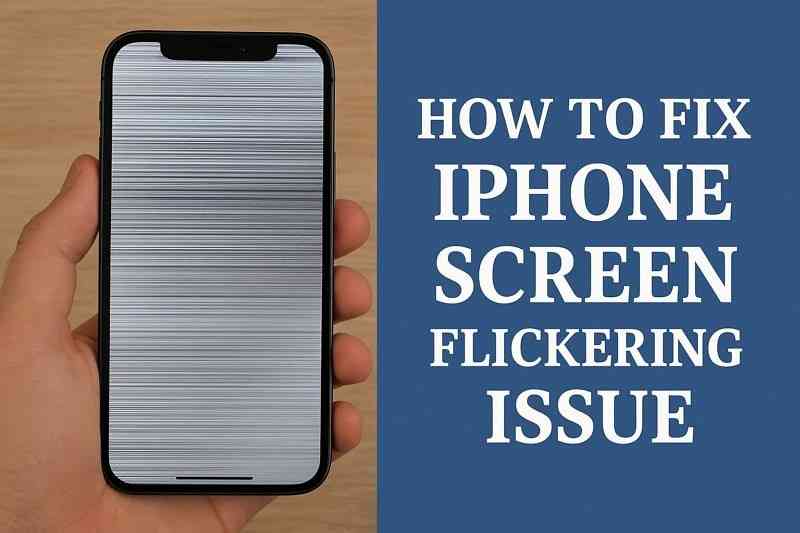
A lot of users are concerned when their smartphone begins flickering out without any notice or comprehension. This problem can make everyday tasks difficult, especially if you depend on your phone for work. Some simple solutions and iOS system repair tools can help you fix this issue at home. Hence, this guide covers clear, easy steps for anyone to stop iPhone screen flickering successfully.
Part 1. What are the Reasons behind iPhone Screen FlickeringUnderstanding the reasons behind screen flickering helps pick the best solution for every case:
- Software glitches happen when your device settings conflict, causing display changes.
- Poor battery health triggers flickering or dimming of your iPhone display during use.
- App incompatibility leads to flickering if certain apps are not optimized for your device model.
- Display settings like auto-brightness may clash with system controls and result in flickering.
- When an iOS update fails, software bugs and incomplete installations can create display errors.
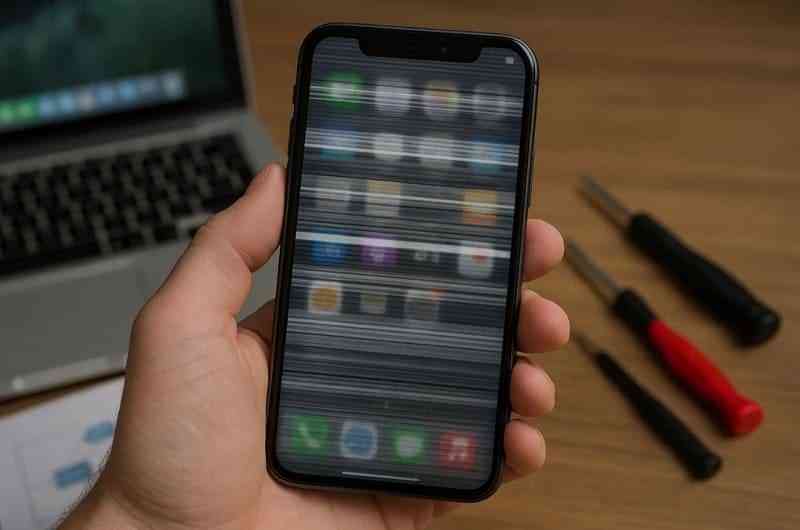
Part 2. How to Fix iPhone Screen Flickering Issue - Dr.Fone - System Repair (iOS)
Dr.Fone - System Repair (iOS) stands out as the top choice as it is designed for fixing iPhone screen flickering at home. It can fix over 150 iOS issues, including black screen, and when your iPhone is frozen or won’t turn on at all. Plus, even situations where the iPhone software update failed can be resolved quickly and restore normal function.
During the repair, it lets you download your preferred latest and compatible iOS firmware onto your phone. This iOS system repair software offers a Standard Repair mode to fix frequent issues like crashes or freezes while keeping all personal data. Besides, you can also use its Advanced Repair mode to resolve severe problems. Besides, privacy and security are prioritized, ensuring your device and data stay protected at all times.
Key Features- System Upgrade: This program even allows easy upgrade to the latest iOS versions by keeping your files intact always.
- Beta Downgrade: Apart from that, it downgrades from unstable beta to official iOS safely without any hassle.
- iTunes Repair: You can also repair and synchronize over 200+ iTunes-related errors for a smooth connection.
Review the following steps to learn how to use this iOS system repair tool to resolve such iPhone problems:
- Infonomics: What business leaders should know
- The demise of landlines
- New iPhones have Qualcomm satellite modem, new Apple radio chips
- NewsDay reporter robbed in SA
Keep Reading
Step 1. Open iOS System Repair to Fix Screen Flickering
As you run the software, navigate to the “System Repair” module to choose the “iPhone” option. Subsequently, click the “Repair Now” button under “iOS Repair” and then connect your iPhone to the computer.
Step 2. Access Recovery Mode to Download iOS Firmware
Following this, select the “Standard Repair” option and then hit the “Enter Recovery Mode” button once you put your phone into “Recovery Mode.” Upon seeing the compatible iOS firmware, click the “Download” button to install your desired one.
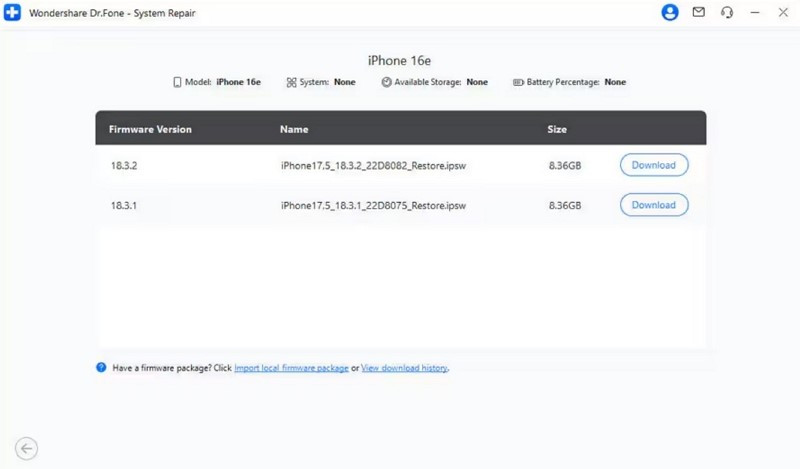
Step 3. Commence Resolving the Screen Flickering Issue
Afterward, press the “Repair Now” button to allow the program to fix the iPhone screen flickering problem.
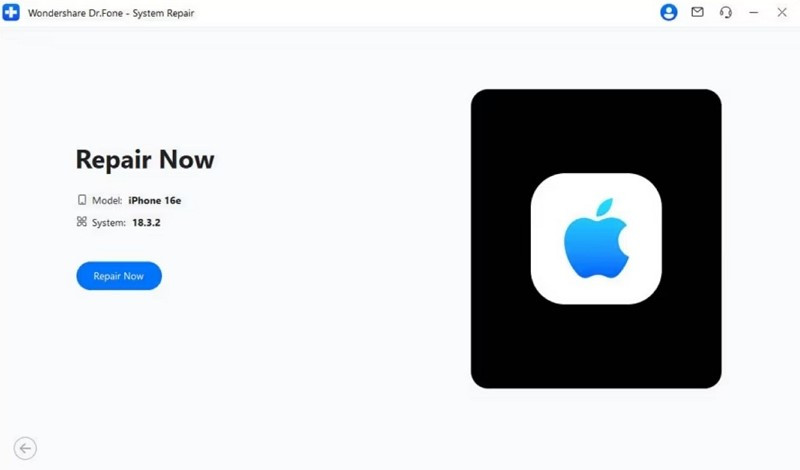
Part 3. Enable Reduce Transparency to Resolve iPhone Screen Flickering
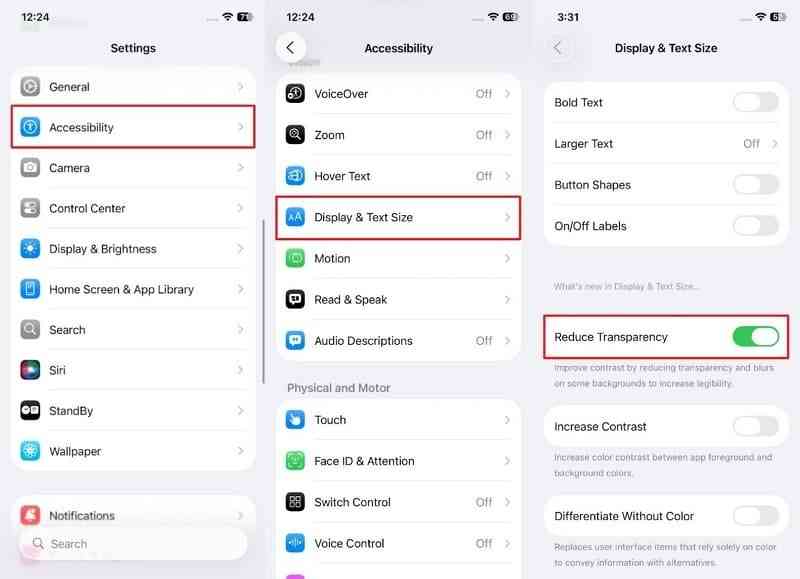
Another simple way to fix flickering is by enabling the Reduce Transparency option on your smartphone. This setting improves contrast, reduces visual effects, and often stops flickering. It works well when other fixes fail, especially if an iPad is unable to install an update, causing related display issues. So, go through the instructions to understand how to turn on the Reduce Transparency feature:
Instruction. Upon reaching the settings, access the “Accessibility” section and tap the “Display & Text Size” option. Subsequently, enable the “Reduce Transparency” toggle to finish the procedure.
Part 4. How to Fix Screen Flickering Issue by Force Restarting Your iPhone
More so, when your phone flickers on the screen, it is also advisable to restart it through force. It not only cleans the system, but also gets rid of temporary glitches and makes the system run smoothly again. Moreover, the process only requires simple button presses suitable for any iPhone model. Anyway, take guidance from the steps below to learn how to force restart your preferred device:
- For iPhone 8 and later: When you press the “Volume Up” key, quickly release it and do it again with the “Volume Down” button. Afterward, hit the “Power” key for a few seconds and release it upon seeing the Apple logo.
- For iPhone 7 and Plus: Keep pressing the “Volume Down” and “Side” keys together and release them when you see the Apple logo.
- For iPhone 6 and earlier: To initiate, squeeze both the “Home” and “Sleep/Wake” buttons at once until the Apple logo appears.
Conclusion
To conclude, screen flickering can disrupt your daily phone use and ultimately cause disturbance for users. Fortunately, this article has explored multiple quick and effortless ways to stop this issue. Among the solutions, opting for a dedicated iOS system repair tool ensures your device works smoothly. For that, Dr.Fone - System Repair (iOS) is designed to fix complex iPhone issues without risk, preserving your data.